Quick answer
A Bybit API key lets an application read permitted account data and, when authorised, send trading requests. Create it in Bybit’s web API Management, enable two-factor authentication, and choose the smallest useful set of permissions. TradeMatic uses a system-generated HMAC key for Bybit Global MAINNET Spot with UTA 2.0: read/write access and SpotTrade, without withdrawal or transfer permissions.
You receive an API Key and an API Secret. Both are sensitive; the secret signs requests and must stay out of screenshots, public chats and source code. The article never asks you to enter credentials on this website.
- Check your account and two-factor authentication.
- Create a system-generated key in API Management.
- Enable Spot trading only; restrict access to the correct server IP.
- Verify creation, then follow /settings in the genuine bot.
- Check the connection and decide separately whether to allow trading.
Before you begin
Use an account you are entitled to operate in your jurisdiction. Check Bybit’s current identity-verification requirements and service availability; do not bypass regional restrictions. A Bybit EU or other regional account is not automatically compatible with this Global integration. Have Google Authenticator or the verification method required by your account ready.
Use a desktop or mobile web browser: Bybit’s creation guide does not provide the standard key-creation flow inside the mobile app. New accounts may have to wait the first 48 hours. Mainnet, Testnet and Demo use different credentials or environments. A test key is not a safe way to connect this live-mainnet product.
API access does not replace trading funds. Bybit charges fees when trades execute. The TradeMatic subscription provides access to the service; check the subscription terms before proceeding.
Create the key, step by step
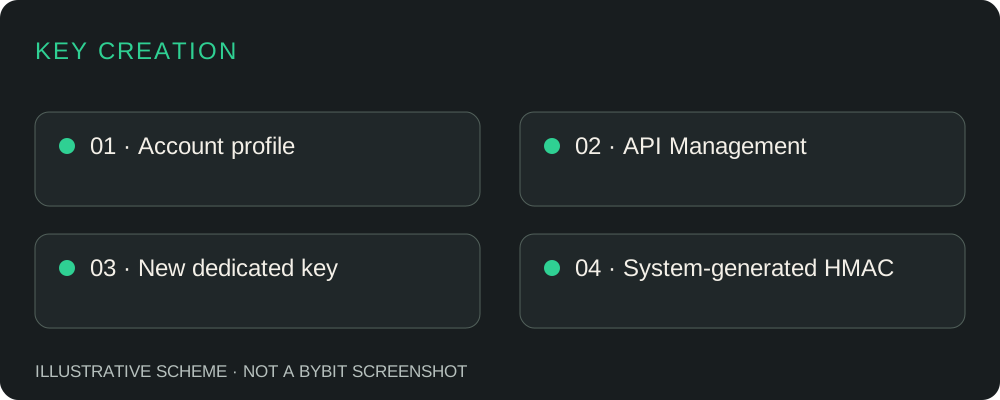
The following sequence follows Bybit’s official creation guide. Labels may differ with language, region or an interface update. The authenticated account screen was not exercised for this article; the diagrams below are explanatory, not screenshots.
Open Bybit directly and sign in
Check the domain before entering your password. Use API Management after signing in; this technical link is not a registration referral.
Find the API section
From your profile, open the API management area. If a signed-out link returns you to the home page, sign in and navigate from your account.
Choose Create New Key
Do not edit a key used by another application just to save a step. A dedicated key makes revocation and permission review clearer.
Select the system-generated type
This is the HMAC route that provides a key/secret pair. Self-generated keys use RSA and your own public/private key pair; the current TradeMatic connection does not implement that route.
Name it and choose its purpose
Use a recognisable name such as “TradeMatic Spot”. Follow the API transaction path where shown. Do not assume TradeMatic is an authorised item in a third-party-application list.
Set minimum permissions
Enable the read/write setting and Spot trading described below. A read-only connection may pass reading checks but cannot place the bot’s orders.
Restrict the source IP
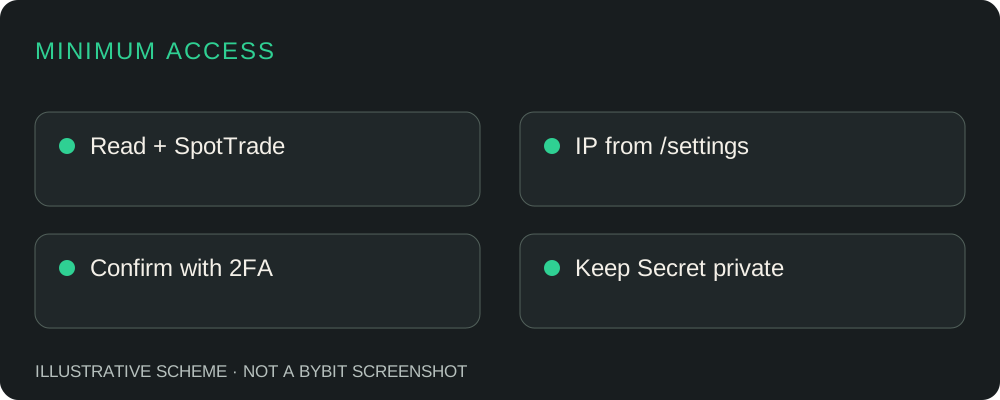
Copy the current whitelist address privately provided through TradeMatic /settings. Your laptop’s address or the website’s DNS address is not a substitute.
Confirm with two-factor authentication
Complete Bybit’s verification step. Never send your authenticator code, account password or recovery phrase to TradeMatic support.
Keep the displayed credentials private
Follow Bybit’s save instructions. Use a password manager or another encrypted secret store; do not rely on being able to reveal the secret again later.
Review before connecting
Check the environment, permission set, IP restriction and expiry in API Management. Then continue through the genuine bot, not a form on this page.
Which API permissions does TradeMatic need?
Read/write and SpotTrade are distinct checks. The API reports read-only keys separately from the Spot permission set; changing only one is insufficient. See the official key-information fields.
| Permission | Needed? | Why |
|---|---|---|
| Required account-data reads | Yes | Account mode, balance, fees and order state. |
| Read/write + SpotTrade | Yes, for trading | Own spot BUY and linked limit SELL orders. |
| Withdraw | No | The bot does not need to withdraw assets. |
| Account / subaccount transfers | No | No transfer permission is needed by this integration. |
| Derivatives / futures | No | This connection is Spot only. |
| Margin / leverage | No | The executor requests non-leveraged spot orders. |
| P2P / fiat / Pay | No | Unrelated to the connection. |
Configure the Bybit API IP whitelist
An IP whitelist limits which source addresses may use a key. Bybit sees the trading server’s public outgoing address, not necessarily your home connection. NAT, proxies or a hosting change can alter it. A static website IP does not prove the trading connection uses that address.
Use the current IP supplied privately in /settings. We do not publish infrastructure addresses here. If the bot does not provide a clear value, or Bybit rejects it, confirm it with official support without sending your secret. Do not copy random IPs from another tutorial or remove the restriction as a routine fix.
When an outgoing address changes, new signed requests can fail until the restriction and connection are checked. Review the addresses in API Management, check that the same key is configured, and follow the bot’s connection checks. A successful balance read is useful evidence of permitted reading, not proof that every trading permission is correct.
Bybit’s API FAQ states that keys without IP binding expire after 90 days. Check the actual expiry in your account. An IP-bound key is not a promise of permanent validity; account-security changes can affect it too.
Handle the API Key and Secret carefully
The API Key identifies a credential; the API Secret signs HMAC requests. Treat both as sensitive. Use a dedicated key, protect your Telegram account, and avoid cloud clipboard history, shared screenshots and untrusted browser extensions. Never put either value in a URL.
Enter credentials only through /settings in the private, genuine @TradeMaticBot chat. The bot attempts to delete credential messages, but deletion is not guaranteed. A private chat is not permission to send secrets to a support agent or another bot.
Connect the key to TradeMatic
Open @TradeMaticBot from this site. Complete onboarding, language and required consent steps. A valid subscription or existing authorised access is required for /settings; you do not need to launch trading just to configure the connection.
- Open /settings in the private bot chat.
- For a first connection, follow the pair-selection step shown by the bot.
- Enter API Key, then API Secret, only when the corresponding prompt appears. Use /cancel to leave the flow.
- Wait for the key, account-mode, permissions and data-connection checks. Use the specific reason shown if one fails.
- Review the pair, BUY amount in USDT, drop threshold, sell-price settings and delay. Check available and locked funds with /balance.
TradeMatic trades from the supported UNIFIED account, not merely a Funding balance. A zero balance can still be a valid read; an invalid permission cannot be solved by depositing funds.
Check the connection without a test trade
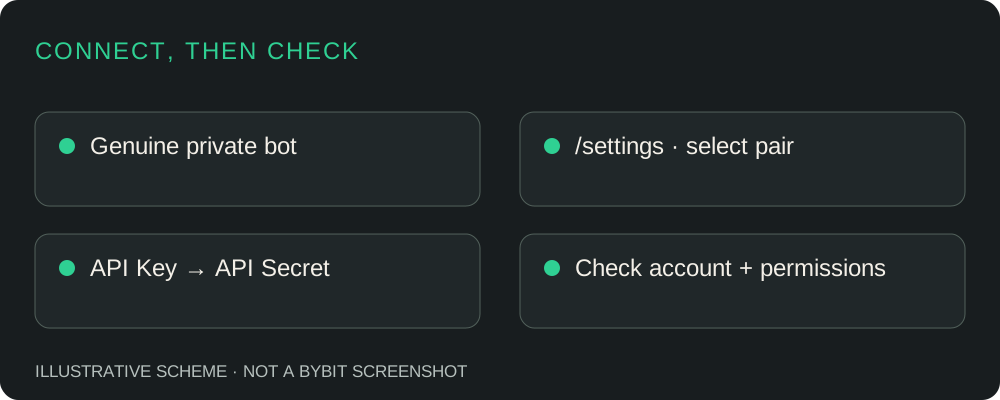
Read /settings after verification. Confirm Global MAINNET, the intended account and pair, supported UTA 2.0 mode and actual Spot trading permission. Public prices alone do not prove private authentication; an open private socket alone does not prove subscription acknowledgement.
Use /balance to check account reading. Then decide whether you want to issue /start. This guide does not create an order, turn on RUN, or connect credentials on your behalf. Read how the algorithm works and the risk disclosure first.
Common API setup errors
The codes below are checked against Bybit’s official error list; the bot may show a cleaned-up label instead. Use its specific failure, not a generic “wrong key” diagnosis.
| Symptom | Check and next action |
|---|---|
| API Key Invalid · 10003 | Check copying and Global/Mainnet versus Testnet, Demo or a regional account. Re-enter only through /settings; ask support if the environment is unclear. |
| Invalid Signature · 10004 | Confirm a matching system-generated HMAC key/secret. If copied correctly, contact support; signing or clock issues require investigation, not more permissions. |
| Permission Denied · 10005 | Check both read/write and SpotTrade. Do not add Withdraw, futures or transfers. Escalate if the required rights are already present. |
| IP Address Not Allowed · 10010 | Compare the current /settings IP with the key’s restriction. Ask support to confirm changes; do not routinely disable binding. |
| Account Type Mismatch | Check Global MAINNET and supported UTA 2.0. A balance in another account section is not proof of a compatible mode. |
| API Key Expired · Spot -2015 | Review expiry and security changes in API Management; renew or replace through Bybit’s supported flow. |
| Rate limit | Respect the stated cooldown. Repeated saving or rapid retries can worsen it; report persistent limits after waiting. |
| Network / API unavailable | Check official service notices and retry later. Report the time and cleaned error, never a signed request or secret. |
| Cannot create a key | Check 2FA, verification, the web flow and the possible first-48-hour restriction. Account restrictions belong with Bybit support. |
| Key exists but TradeMatic rejects it | Check HMAC, environment, UTA mode, subscription, consent, permissions and IP separately. Send support only the error and approximate time. |
If a key may have leaked
Use /stop to block new bot entries, then promptly revoke the affected key in Bybit API Management. Stopping the bot and revoking the exchange credential are different actions. In the web key list, use the delete action and confirm.
Review orders, fills and account activity. Secure the main account with Bybit’s recommended measures if needed. Create a new dedicated key with minimum rights and replace it through /settings. Do not assume revocation cancels existing orders or reverses completed trades.
Frequently asked questions
Is Bybit API free?
Bybit’s official creation guide does not include an API-key purchase. Trading fees still apply, and a TradeMatic subscription is separate. Check the exchange’s current fees and limits.
Can I create an API key on mobile?
Use Bybit’s website in a browser. The official creation guide does not provide the standard flow in the mobile app; desktop is easier for checking permissions.
Does TradeMatic need withdrawal permissions?
No. Neither Withdraw nor account-transfer permission is required for this Spot integration.
Can a bot lose money without withdrawal access?
Yes. Trading permission can produce losses, including through unauthorised or unsuitable trades. No-withdrawal is not a profit or safety guarantee.
What is an IP whitelist?
It is a set of permitted source addresses. Use the current trading-service address provided privately through /settings, not the address of your PC or a random example.
Why does my key expire?
Bybit documents 90-day expiry for unbound keys. Check API Management for the actual expiry and account-security effects; do not assume bound keys last forever.
Can I use one key with multiple applications?
Prefer a dedicated key for each service. Sharing complicates revocation, IP restrictions, rate-limit attribution and investigation of unexpected activity.
How do I revoke a key?
Open Bybit web API Management, select the key’s delete action and confirm. Also stop new bot entries; completed trades and standing orders need separate attention.
Does entering a key automatically start trading?
A new stopped setup stays stopped. Existing RUN can resume after same-UID key replacement; /start is an actual trading instruction. Use /stop if you want to prevent new entries.
What if TradeMatic cannot connect?
Follow the specific error in /settings and the checks above. Contact @TradeMaticAdmins with the time and cleaned error only; never send support your API Secret.
Official sources
Sources checked 6 November 2026. Account screens may change; follow the current labels and official regional requirements.